

Active Directory Domain Services (ADDS) Explained: The Backbone of Every Windows Network
Active Directory Domain Services (ADDS) is one of the most critical server roles in any Windows-based IT environment. Whether you work in a small business or a large enterprise, ADDS is the foundation that manages users, computers, security policies, and network resources in a centralized and organized way. If you are an IT professional, system administrator, or someone looking to build a career in networking, understanding ADDS is absolutely essential.
What Is Active Directory Domain Services (ADDS)?
Active Directory Domain Services is a server role in Windows Server that provides a centralized database and set of services to manage and organize network resources. Think of it as the brain of your entire network. It stores information about every user account, computer, printer, shared folder, and security policy in your organization. When an employee logs into their computer at work, it is ADDS that verifies their username and password and decides what resources they are allowed to access.
In simple terms, without ADDS, every computer in your network would operate independently. Users would need separate accounts on each machine, there would be no centralized security, and managing even 10 computers would become a nightmare. ADDS solves all of this by bringing everything under one unified management system.
Key Components of Active Directory:
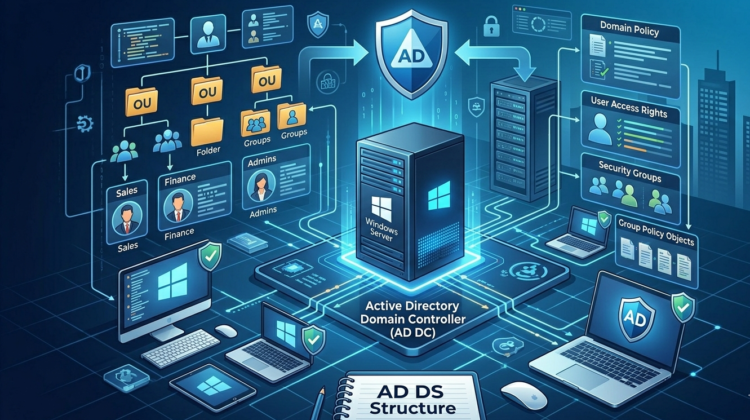
Domain: A domain is the core unit of Active Directory. It is a logical group of network objects such as users, computers, and devices that share the same Active Directory database. For example, a company called TechBitan might have a domain named “techbitan.local” or “techbitan.eu.” Every user and computer within this domain is managed centrally.
Domain Controller (DC): A Domain Controller is a Windows Server that has the ADDS role installed. It holds the Active Directory database and handles all authentication requests. When a user types their username and password, the Domain Controller verifies the credentials and grants or denies access. Every domain needs at least one Domain Controller, but for reliability and fault tolerance it is strongly recommended to have at least two.
Organizational Units (OUs): OUs are containers inside Active Directory that help you organize objects logically. For example, you can create OUs named “HR Department,” “IT Department,” “Finance Department,” and “Malta Office.” Then you place the relevant user accounts and computers inside each OU. This makes management and policy application much easier.
Group Policy Objects (GPOs): GPOs are one of the most powerful features of ADDS. They allow administrators to define rules and settings that automatically apply to users and computers within a domain or OU. For example, you can create a GPO that forces all computers to lock after 5 minutes of inactivity, prevents users from installing unauthorized software, sets a mandatory desktop wallpaper with the company logo, enforces password complexity requiring at least 8 characters with uppercase, lowercase, numbers, and symbols, or maps network drives and printers automatically when a user logs in.
Users and Groups: ADDS allows you to create and manage user accounts centrally. Instead of creating local accounts on every computer, you create one domain account per user, and they can log in to any computer joined to the domain. Groups allow you to organize users and assign permissions efficiently. For example, you create a group called “Finance Team,” add all finance employees to it, and then give the group access to the shared finance folder. When a new employee joins, you simply add them to the group and they instantly get all the right access.
DNS (Domain Name System): Active Directory depends heavily on DNS. DNS is used to locate Domain Controllers, resolve computer names to IP addresses, and ensure all domain services function properly. When you install ADDS, a DNS server role is usually installed alongside it. Without properly functioning DNS, Active Directory will not work.
DHCP Integration: While not part of ADDS itself, DHCP (Dynamic Host Configuration Protocol) works closely with Active Directory to automatically assign IP addresses to computers and devices on the network, making network management much smoother.
Step-by-Step: How to Install and Configure ADDS on Windows Server
Prerequisites: A computer or virtual machine running Windows Server 2019 or 2022. A static IP address assigned to the server (for example 192.168.1.10). A server name decided in advance (for example DC01). Administrator access to the server.
Step 1 — Set a Static IP Address: Open Network and Sharing Center, go to adapter settings, right-click your network adapter, select Properties, then Internet Protocol Version 4. Set the IP address to 192.168.1.10, subnet mask to 255.255.255.0, default gateway to 192.168.1.1 (your router), and preferred DNS to 127.0.0.1 (the server itself since it will also be the DNS server).
Step 2 — Rename the Server: Open System Properties, click Change, and set the computer name to DC01. Restart the server for the name change to take effect.
Step 3 — Install ADDS Role: Open Server Manager and click “Add Roles and Features.” Click Next through the wizard until you reach Server Roles. Check the box for “Active Directory Domain Services.” The wizard will prompt you to add required features — click Add Features and continue clicking Next until you reach the Install button. Click Install and wait for the installation to complete.
Step 4 — Promote the Server to a Domain Controller: After installation, you will see a yellow notification flag in Server Manager. Click it and select “Promote this server to a domain controller.” Select “Add a new forest” since this is your first domain. Enter your root domain name, for example “techbitan.local.” Set the Forest and Domain Functional Level to Windows Server 2016 or higher. Ensure DNS Server is checked. Set the Directory Services Restore Mode (DSRM) password — this is a recovery password, so keep it safe. Click Next through the remaining screens and then click Install. The server will automatically restart and boot as a Domain Controller.
Step 5 — Verify the Installation: After restart, log in with the domain administrator account (TECHBITAN\Administrator). Open Server Manager and confirm that ADDS and DNS roles are listed. Open “Active Directory Users and Computers” from the Tools menu. You should see your domain name with default OUs like Computers, Domain Controllers, and Users.
Step 6 — Create Organizational Units: In Active Directory Users and Computers, right-click your domain name, select New, then Organizational Unit. Create OUs such as “IT Department,” “HR Department,” “Finance Department,” and “Workstations.” These will help you organize your users and computers logically.
Step 7 — Create User Accounts: Right-click on the appropriate OU (for example IT Department), select New, then User. Enter the first name, last name, and user logon name (for example john.smith). Set a password and configure password options like “User must change password at next logon.” Click Finish. The user can now log in to any domain-joined computer.
Step 8 — Join a Client Computer to the Domain: On the client computer (Windows 10 or 11), go to System Properties, click Change, select Domain, and type your domain name “techbitan.local.” Enter domain administrator credentials when prompted. The computer will restart and is now part of the domain. Users can log in with their domain accounts.
Step 9 — Create and Apply Group Policies: Open “Group Policy Management” from Server Manager Tools. Right-click your domain or a specific OU and select “Create a GPO in this domain.” Name the policy, for example “Security Policy — Password Complexity.” Right-click the new GPO and click Edit. Navigate to Computer Configuration, then Policies, then Windows Settings, then Security Settings, then Account Policies, then Password Policy. Set minimum password length to 8, enable password complexity, and set maximum password age to 90 days. Close the editor. The policy will automatically apply to all computers and users in that OU.
Real-World Example: A company in Malta with 50 employees was managing everything manually — each computer had local user accounts, shared folders had no security, and there was no centralized control. After deploying a Windows Server 2022 with ADDS, the IT team created a domain “company.local,” organized users into department-based OUs, applied Group Policies for security and desktop standardization, and set up centralized login with domain accounts. The results were immediate: IT support tickets dropped by 40% because password resets were now centralized, new employee onboarding went from 2 hours to 15 minutes, security improved because GPOs enforced screen locks, password complexity, and blocked unauthorized software installations, and shared folders were secured with group-based permissions so employees could only access files relevant to their department.
Best Practices for ADDS Management:
Always deploy at least two Domain Controllers for redundancy. If one fails, the second one keeps the network running without interruption.
Regularly back up Active Directory using Windows Server Backup. Schedule automated backups daily so you can recover in case of disaster.
Keep your Domain Controllers updated with the latest Windows security patches to prevent vulnerabilities.
Use descriptive naming conventions for OUs, groups, and user accounts. For example, use “OU-IT-Department” and “GRP-Finance-ReadOnly” so anyone can understand the structure.
Audit Active Directory regularly. Review user accounts and disable any accounts that belong to employees who have left the company. Stale accounts are a security risk.
Implement a tiered administration model. Do not use Domain Admin accounts for daily tasks. Create separate admin accounts with limited privileges for everyday management.
Monitor Active Directory health using built-in tools like “dcdiag” (Domain Controller Diagnostics) and “repadmon” (Replication Monitor) to catch problems before they cause outages.
Active Directory Domain Services is the heart of every Windows network. Mastering ADDS is not just a skill — it is a career advantage for any IT professional. Whether you are managing 10 users or 10,000, ADDS gives you the power to control, secure, and organize your entire IT infrastructure from one place.
